How big can you print an AI image? A plain guide to pixels, DPI and paper sizes
Work out in one sum how large your ChatGPT, Midjourney or Canva image will print sharply, and what to do when it's too small for the poster you want.
· 6 min read
By the Blessed Pixels team
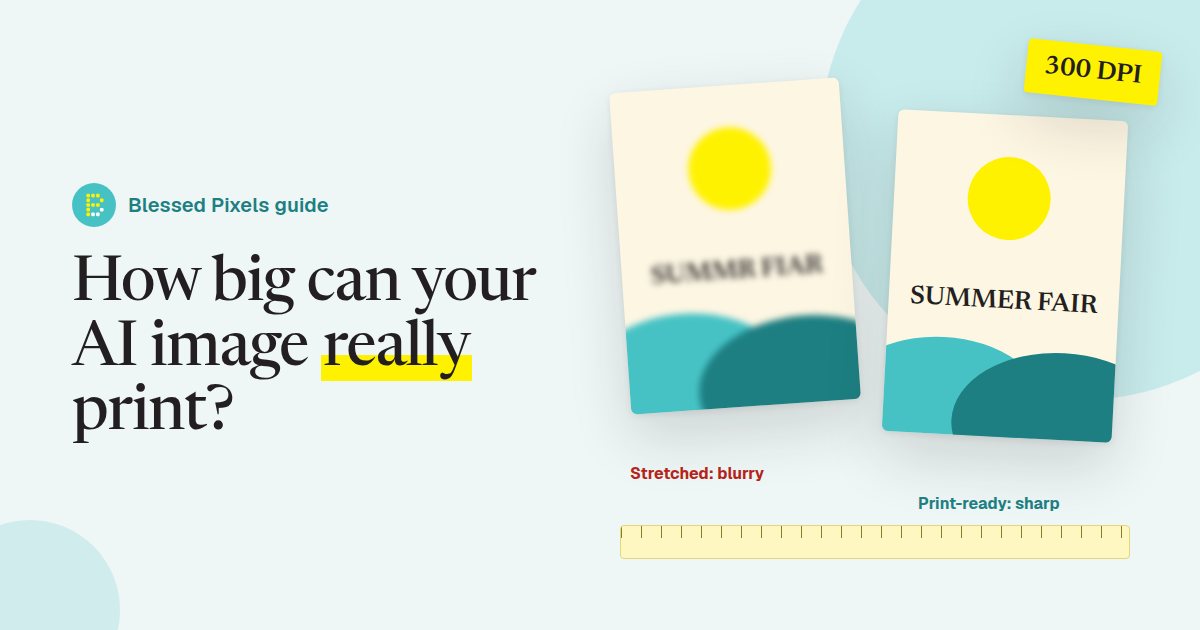
You've made a lovely image for a shop window poster. On your phone it looks perfect. Then the print shop emails back: "This file is low resolution and will print blurry. Do you have a larger version?"
That's the most common problem with printing an AI image, and you can see it coming before you pay for anything. One sum tells you how big your image will print sharply. It takes about a minute.
The quick answer: divide by 300
Printers usually want 300 dots per inch (DPI) for anything people look at up close: flyers, menus, business cards, posters on a counter. So take the width of your image in pixels and divide it by 300. That's how many inches wide it will print sharply. Multiply by 2.54 for centimetres.
A worked example, with a made-up file. Say your image is 1024 pixels wide and 1536 pixels tall, a common shape for a tall AI image.
- Width: 1024 ÷ 300 = 3.4 inches, about 8.7 cm
- Height: 1536 ÷ 300 = 5.1 inches, about 13 cm
So it prints sharply at roughly the size of a postcard. Ask for A3 and the printer has to stretch every pixel to more than three times its width and height. That's where the soft, smudgy look comes from.
If the sum says your image is too small, you're not stuck. Our print-ready AI artwork service exists for exactly this gap between "looks great on screen" and "printer says no".
How to check your image's size
You need the pixel size, not the file size in megabytes. A big file isn't always a big image.
- Windows: right-click the file, choose Properties, then the Details tab. Look for Dimensions.
- Mac: open it in Preview, then Tools, then Show Inspector. The first tab shows the size in pixels.
- iPhone: open the photo in Photos and swipe up (or tap the ⓘ button). The pixel size is listed with the file details.
- Android: in Google Photos, open the image and swipe up.
Check the file you actually downloaded. Images copied out of a chat window or saved from a social post are often shrunk on the way, so the version you send the printer can be smaller than the one the tool made. When we fix an image for print, a person checks the file against your printer's spec, so a too-small download gets spotted before anything is printed.
What size do you need for each paper size?
Here's what a printer wants for the common A sizes at 300 DPI. These are straight conversions from the paper size in millimetres, before any bleed.
| Paper | Size (mm) | Pixels needed at 300 DPI |
|---|---|---|
| A6 (postcard) | 105 × 148 | 1240 × 1748 |
| A5 (flyer) | 148 × 210 | 1748 × 2480 |
| A4 | 210 × 297 | 2480 × 3508 |
| A3 (poster) | 297 × 420 | 3508 × 4961 |
| A2 (big poster) | 420 × 594 | 4961 × 7016 |
Most printers also ask for 3 mm of bleed on every edge: extra picture that gets trimmed off, so you don't end up with a thin white line where the guillotine wandered. For A4 that makes the page 216 × 303 mm, or 2551 × 3579 pixels. Your printer's own artwork guide will say what they want, and many publish one (here's Hampshire County Council's print team's advice as an example).
Big things seen from a distance are the exception. A banner over a shop front or a pop-up stand at an event is read from metres away, so printers will often accept 150 DPI or less for those. Ask before you assume, because it varies by printer and material.
We set every file up at the exact size, with bleed, for whichever printer you're using. It's all listed on our print-ready artwork page, with prices before you pay.
Why stretching it yourself doesn't work
Two tempting shortcuts, both dead ends.
The first is changing the DPI number in an editing app from 72 to 300 without adding pixels. That only changes a label in the file. The picture has exactly the same detail, so it prints exactly the same size and sharpness. Printers know this trick and will still flag the file.
The second is resizing it bigger in a basic editor. The app has to invent the new pixels by blending the old ones, which gives you a bigger, blurrier picture.
Proper upscaling is different. AI upscaling tools rebuild detail rather than smearing it, and on photos and painterly images the results can be very good. They do struggle with text (letters come out warped or misspelt) and with logos, where clean edges matter most. For a logo, the right fix is usually redrawing it as a vector, a file made of shapes rather than pixels, so it stays crisp from a business card to the side of a van. Both are part of what we do when we make an AI image print-ready, and a person checks the result before you see a proof.
A five-minute check before you send anything to print
- Do the divide-by-300 sum on the file you'll actually send.
- Read every word on the image out loud. AI tools still misspell signs, menus and shop names, and you'll stop seeing the mistakes after the tenth look.
- Keep anything important at least 5 mm in from the edge, so trimming can't cut it off.
- Check your printer's artwork guide for bleed, file type (usually PDF) and colour settings.
- Ask for a proof if it's a big run. Colours on paper are often a little duller than on a bright phone screen.
If you'd rather someone else did all five, see what each print package includes. It's a fixed price per image.
Frequently asked questions
Is 150 DPI good enough for a flyer?
It's usually visibly soft on something held in the hand, especially on text and fine edges. Keep 150 DPI for large things seen from a distance, like banners, and check with your printer first.
Can I ask ChatGPT or Midjourney for a bigger image?
You can ask, but each tool has its own maximum size, and it's often well short of what an A3 poster needs at 300 DPI. Upscaling afterwards is the normal route, and logos are usually better redrawn as a vector.
Why does my image look fine on my phone but blurry in print?
A phone screen squeezes the whole picture into a few inches, so a small image looks sharp. On paper each pixel is spread over a much larger area, and the missing detail shows.
Do I need to convert my AI image to CMYK?
Some printers want CMYK files and some convert for you. Check their guide. Expect very bright, glowing colours from a screen to print a little flatter whichever way it's done.
Who owns an AI image I want to print?
The law here isn't settled, and it depends on the tool's terms and how much of the work is yours. We cover what we know, and don't know, on our print artwork page.
If you've got an AI image you'd like on paper and the sum came out small, send it over. We'll tell you plainly what it can print at and what we'd do to get it there.